

Overview
This SOP describes how to pull telemetry data from the AWS S3 bucket down to your local file system so it can be viewed in SimTelLab.The Installing and Configuring AWS CLI and Creating the Sync File steps are only needed on the first pass. Syncing the Data is required each time new data is available.
Prerequisites
- AWS IAM User Account
- Access Key
- Secret Access Key
If you do not have these yet, request them through a system administrator. Contact Matt Smith at matt.smith@smedleygroup.com.
Installing and Configuring AWS CLI
1
Install AWS CLI v2
Visit the AWS CLI v2 download page and install it. You will now have the local folder structure created in
Program Files and C:/Users/XXXX.2
Navigate to the .aws folder
Navigate to 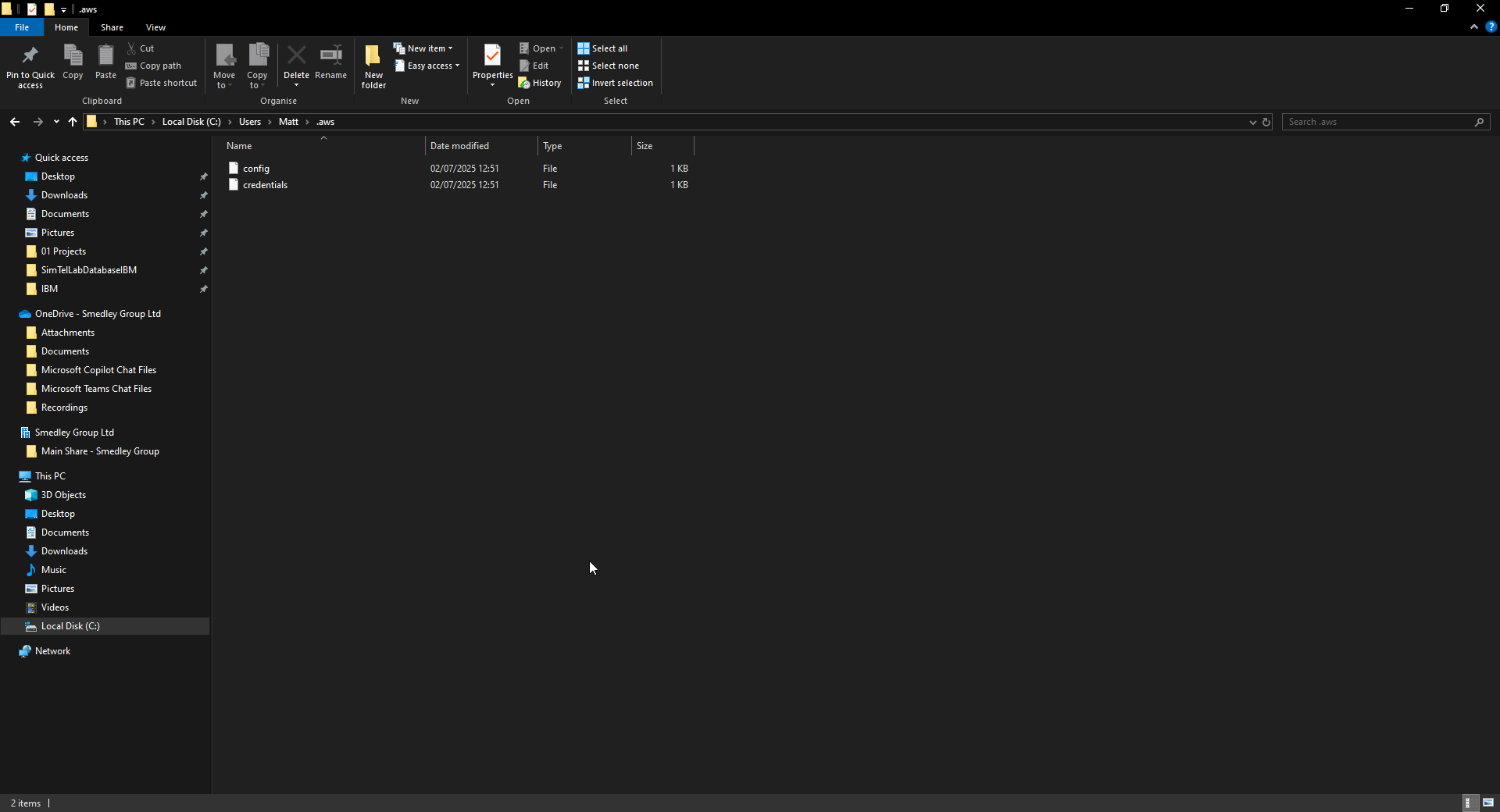
C:/Users/XXXX/.aws.If the
.aws folder does not exist, download and extract the provided .aws.zip file and place the extracted contents into this location.3
Configure the config file
Open the Save and close the
config file in Notepad++. It should be empty. Enter the following, replacing the profile name with whatever you wish (here matt is used):config file.4
Configure the credentials file
Open the Save and close the
credentials file in Notepad++. It should be empty. Enter the following, ensuring the profile name matches the one set in config, and replacing the placeholders with your access keys from the system administrator:credentials file.Creating the Sync File
1
Navigate to the SimTelLab data folder
Navigate to your local file system where you are storing SimTelLab data.
If this is your first time setting this up, download the pre-built folder structure and extract it into
C:/Databases.2
Navigate to the database folder
Navigate to
C:/Databases/SimTelLabDatabaseFKL.3
Create the sync file
Create a new text file and rename it
sync.bat. Ignore any warnings about the file extension making the file unusable.4
Add the sync command
Open Save and close the
sync.bat in Notepad++ and enter the following, replacing <PROFILE> with the profile name you set in the .aws files:sync file.Syncing the Data
1
Run the sync script
Double-click 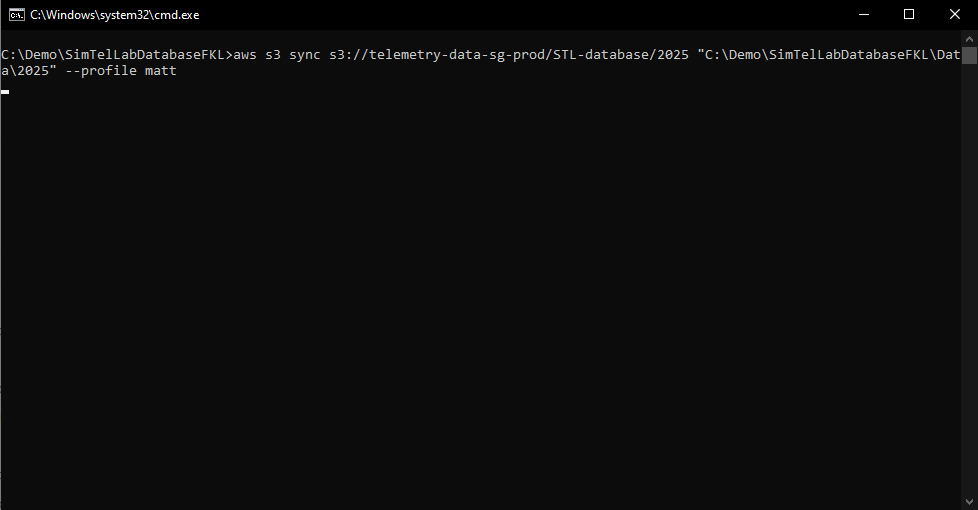
sync.bat in File Explorer. The batch script will run and a command window will pop up.2
Monitor the download
If new data is available, each file will be printed to the command line as it downloads.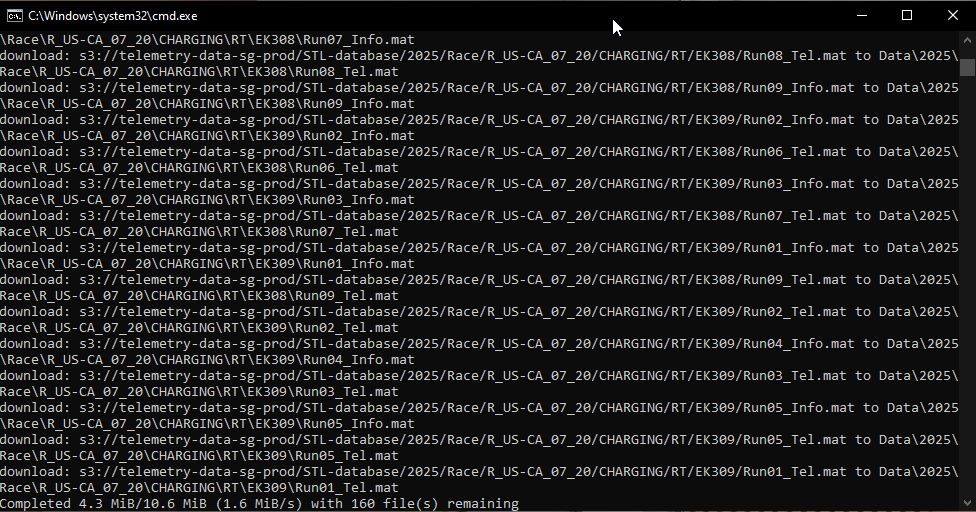
3
Wait for completion
Once syncing has finished, the command window will close automatically.